This page details the repair workflow.
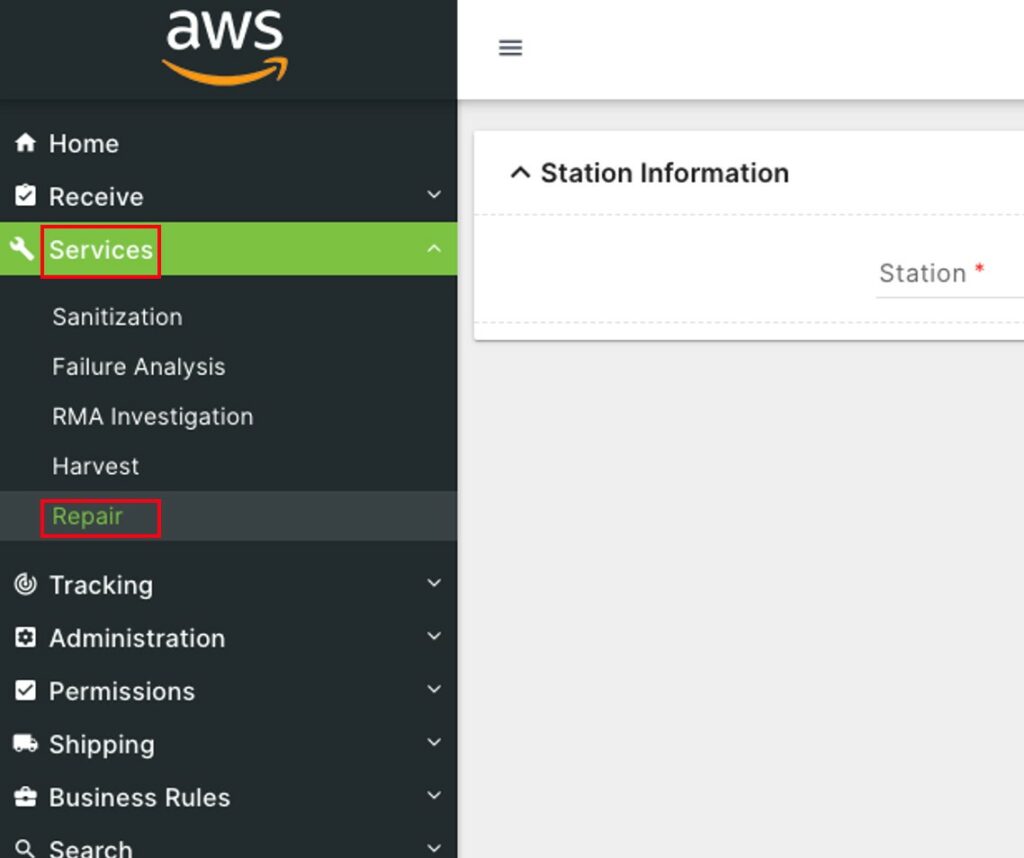
Click on Services to open the sub-module list. Choose Repair.

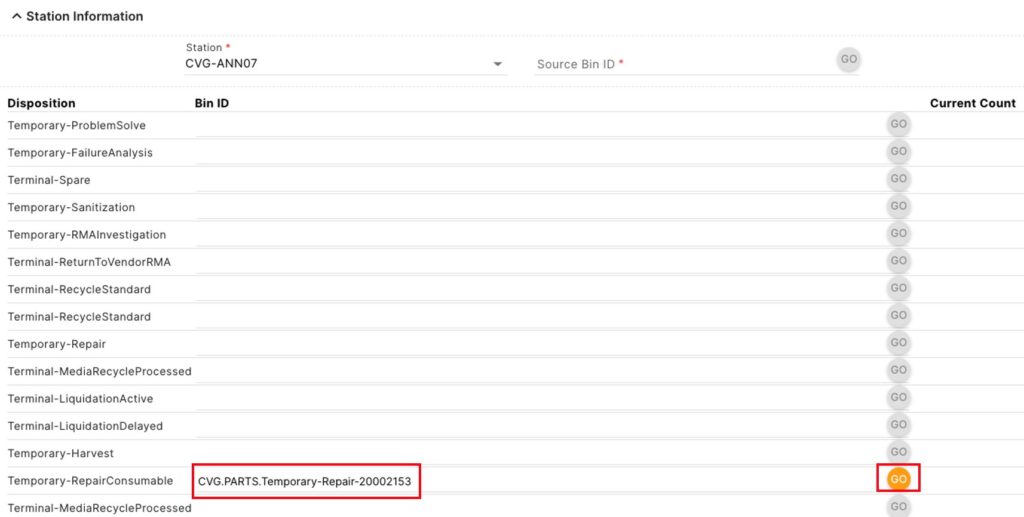
Choose a Station from the drop-down.


Enter a Bin ID and press Go once the button turns orange.

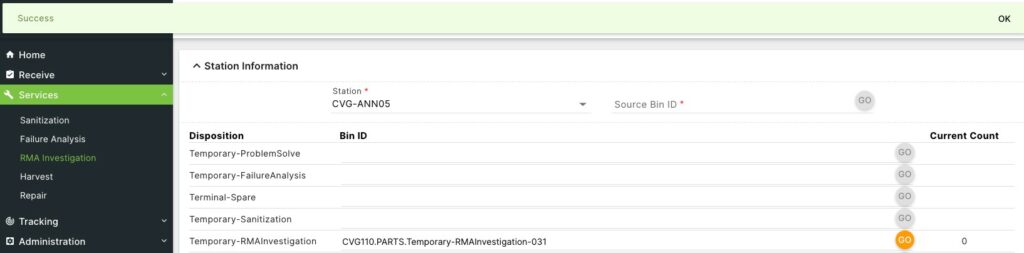
A green banner Success message will appear at the top of the screen if the bin is successfully added to the station.

A red Invalid Bin message will appear if the bin cannot be added to the station.


To enter information about assets within the bin at this station, enter the Source Bin ID of a bin at this station, and press the Go button once it turns orange.


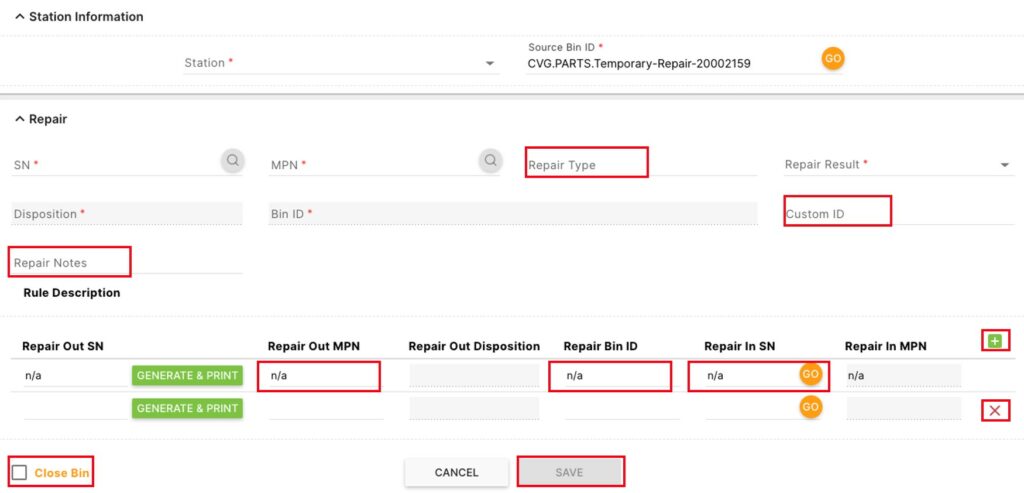
The Repair Records section at the bottom of the page will contain a list of the assets in the bin available for repair. To edit one of those assets or add an asset to the bin, enter the SN and click the 


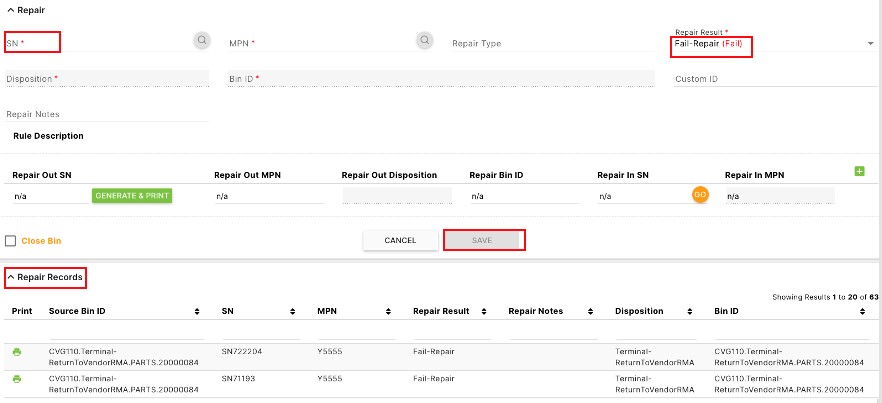
Optionally, before saving, enter further details.
Enter a Repair Type, Custom ID, and Repair Notes.
If there will be parts to be repaired from this asset click Generate and Print to create a Harvested SN. Enter a Repair Out MPN, Repair Bin ID, and Repair In SN for this newly created part.
Click the 

Click the check box next to Close Bin.
Click Save once it has turned green.